The Requestor

When a requestor, a user needing order approval, lands on the payment page they can select from the following actions: Save Cart and Submit to my supervisor for approval.
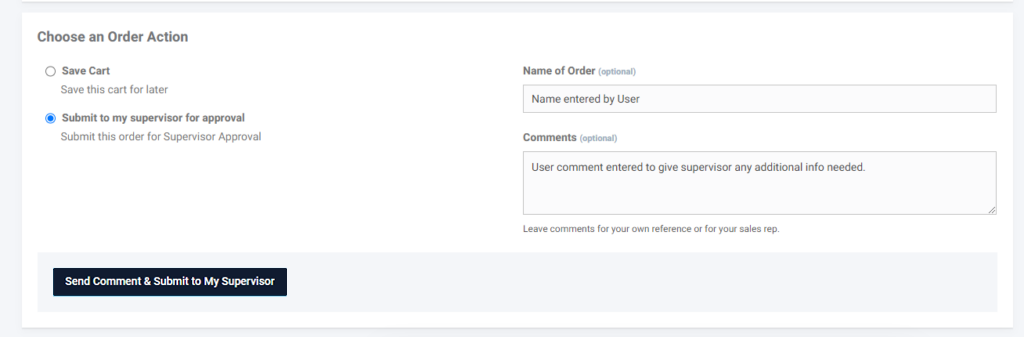
Screenshot of the Choose an Order Action form for a requester, with options to save cart or submit to supervisor for approval, including fields for order name and comments.
Choosing an order action as a requestor

When a buyer selects the option to Submit to My Supervisor for Approval, the system will email all users with a supervisor role associated with the customer account. The supervisor can then log into the platform to either (1) send the order back to the submitter for revisions, (2) approve the order, or (3) reject the order. If the supervisor returns the order to the submitter, the buyer can make necessary modifications and resubmit the order for approval.

At each step, an email notification will be sent to keep all parties informed about any required actions or updates to the order.
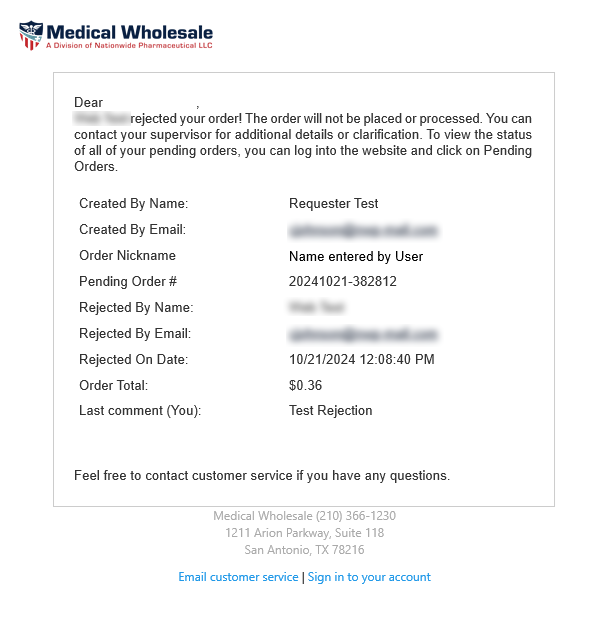
Rejected Order Email

Screenshot of an email notification from Medical Wholesale to a requester about a rejected order, including order nickname, ID, rejection date, total, and last comment.
Email sent to the requestor when a supervisor rejects an order

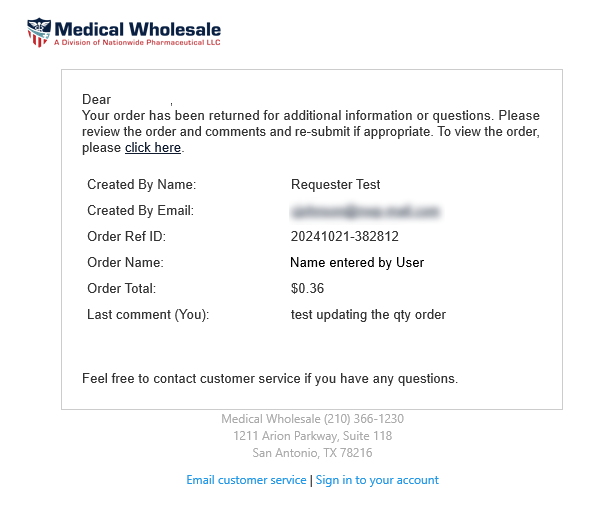
Return to Submitter Email

Screenshot of an email notification from Medical Wholesale to a requester about an order returned for additional information, including order ID, name, total, and last comment.
Email sent to the requestor when a supervisor returns an order for revisions

The Supervisor

The supervisor will receive an email notification for each new pending order, with a link directing them to the platform to approve or reject an order submission. If the user has added a comment to the comment section of an order, it will also be included in the notification.
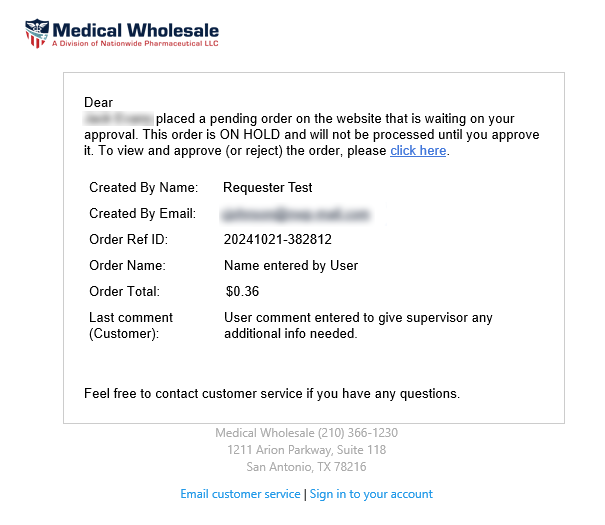
Screenshot of an email notification from Medical Wholesale informing a supervisor about a pending order on hold, including details like order ID, name, total, and a link to approve or reject.
Email sent to the supervisor when an order is awaiting approval

The link in the supervisor's email will take the supervisor to the checkout page for the referenced pending order. Here the supervisor will see the following actions:
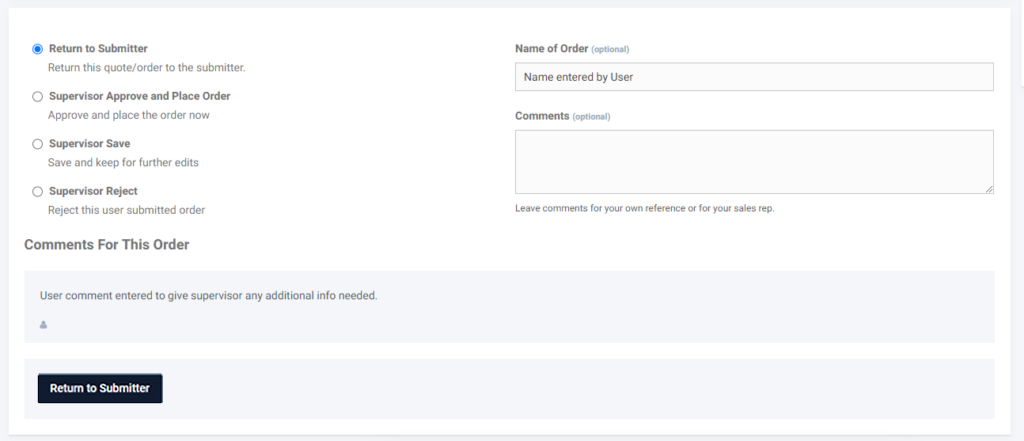
  • Return to Submitter — sends the order back to the submitter for revisions
  • Supervisor Approve and Place Order — approves the order and places it immediately
  • Supervisor Save — saves the order and keeps it open for further edits
  • Supervisor Reject — rejects the submitted order
Screenshot of supervisor order action options, including return to submitter, approve and place order, save for edits, or reject, with fields for order name and comments.
Supervisor order action options

Supervisors and buyers/submitters have access to an additional navigation option, enabling them to view orders currently in the approval workflow. In the dashboard portal, you will find the Waiting on Approval (Supervisor) navigation item and portal button located under the Ordering section.
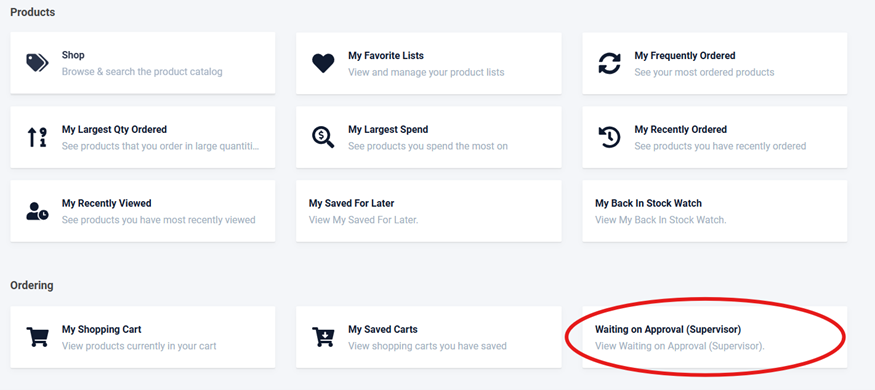
Screenshot of the Ordering section in a user dashboard, with Waiting on Approval (Supervisor) option circled in red, alongside other cart and product list features.
Waiting on Approval (Supervisor) link in the dashboard
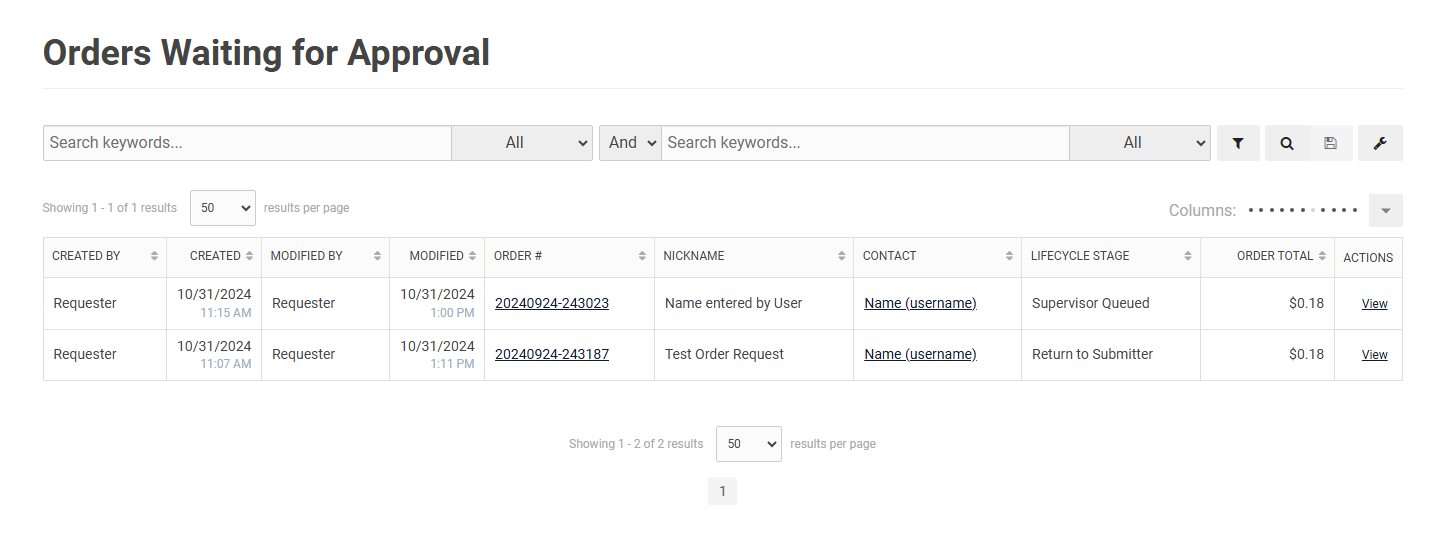
Screenshot of the Orders Waiting for Approval table, showing search filters, columns for created by, order number, nickname, contact, lifecycle stage, total, and actions like view.
Orders Waiting for Approval table

Supervisors and buyers can view a list of orders awaiting approval or requiring additional information from the respective user. The lifecycle stage displays the status of each order. By clicking the order number in the Order # column or the view link in the Actions column, users will be directed to the checkout page where they can proceed with supervisor or order submitter actions.